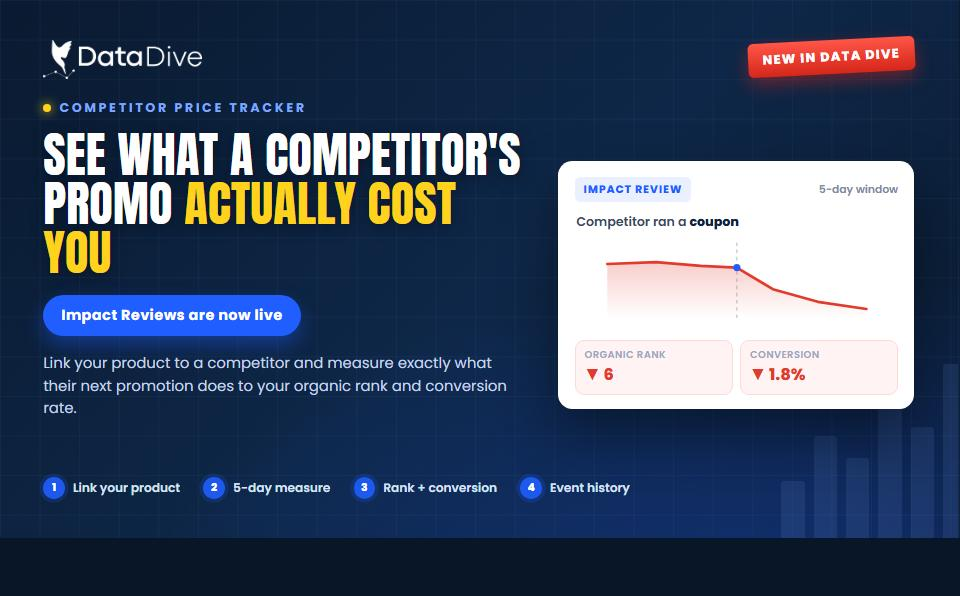
Data Dive’s Competitor Price Tracker Now Gives Impact Review What a Competitor’s Promo Actually Cost You
Your rank slipped last Tuesday. Was that something you did, or something a competitor did? Until now, Competitor Price Tracker could tell
If you have ever opened Amazon, found a niche that caught your attention, and then spent hours clicking through competitor listings, copying ASINs, and building a spreadsheet, there is a faster way.
The Data Dive Chrome Extension places your core research tools directly on every Amazon page, starting with a single click.
Whether you are new to Data Dive or have been using it for some time without exploring its full capabilities, this walkthrough will guide you through the key features. You will learn how to install the extension, use Niche Dive to pull competitor data instantly, use Add to Tray for more precise control over your research, and access Top Search Terms to uncover keyword data that many sellers overlook.
Search for the Data Dive Chrome Extension in Google Chrome and open the first result in the Chrome Web Store.
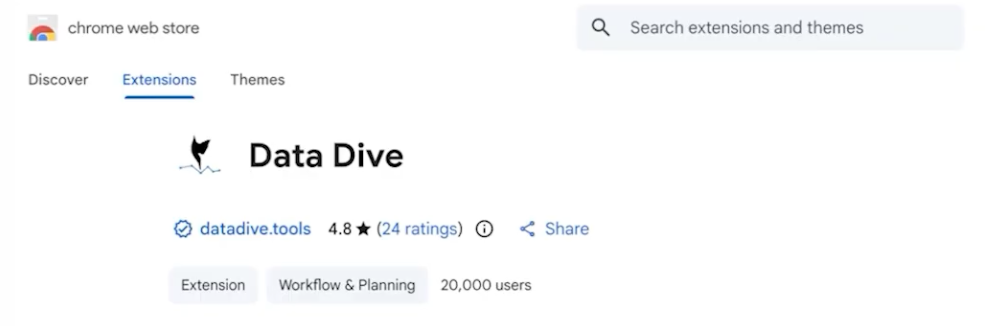
Click “Add to Chrome” and follow the prompts.
Once installed, log into your Data Dive account. The extension connects to your session, so it will not work unless you are logged in.
After that, go to Amazon and you are ready to start.
Find a product you want to research and click the blue Niche Dive button.
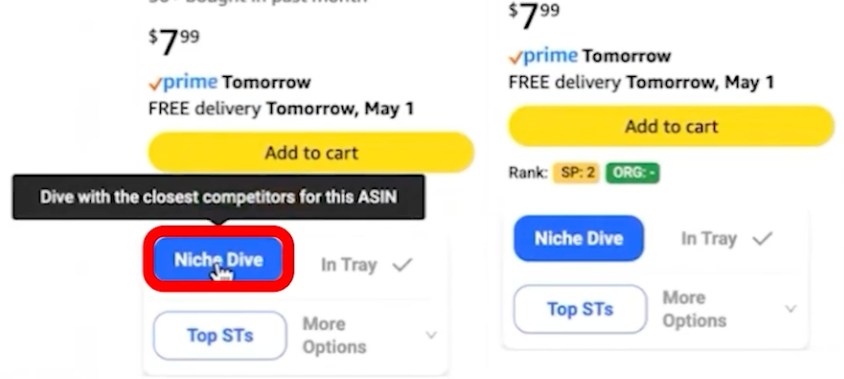
Data Dive will automatically pull 15 relevant competitors.
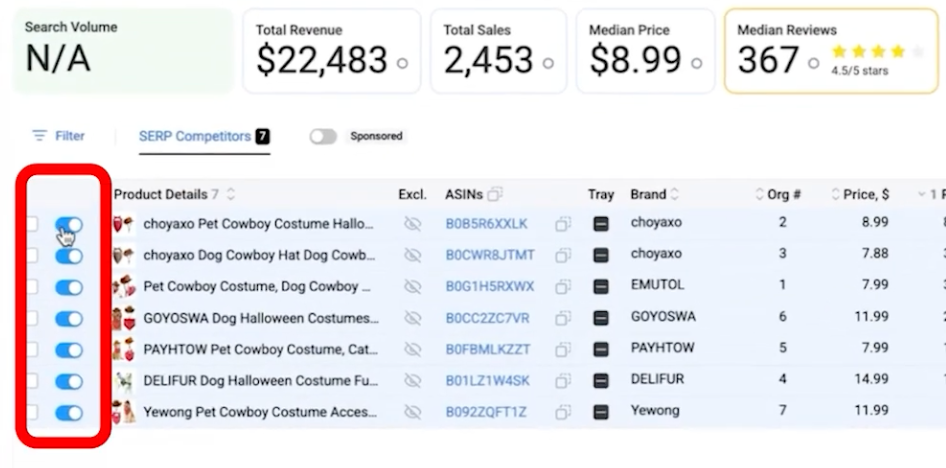
You can adjust the list by turning products on or off or adding your own ASINs. You are not locked into the default selection.
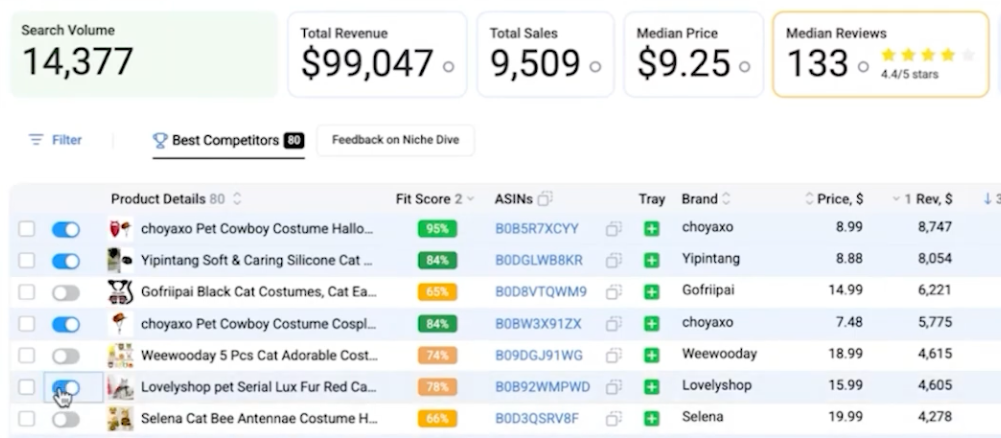
Once your list is ready, add a project title for reference and click “Dive.”

You will be taken directly into Data Dive with your competitors loaded.
If you prefer to select products manually, use Add to Tray.
As you browse Amazon, click “Add to Tray” on any product you want to include. The number on the extension icon updates as you go.
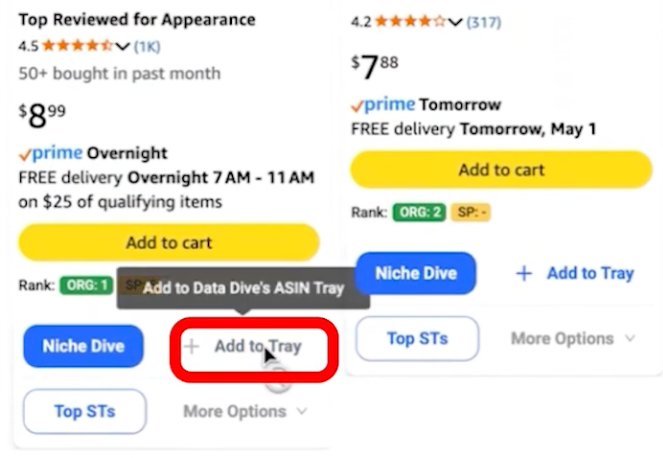
When you are done, open the tray from the extension icon and review your selections.
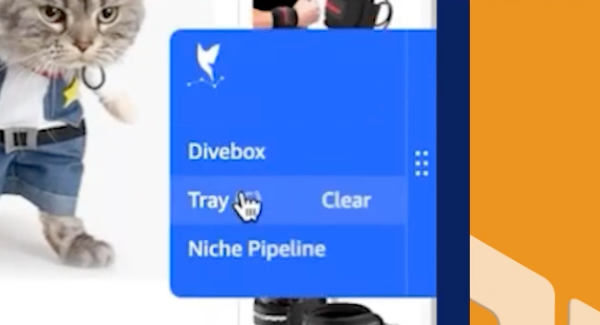
You can remove any product, add a project title, then click “Dive” to move into Data Dive with your selected ASINs.

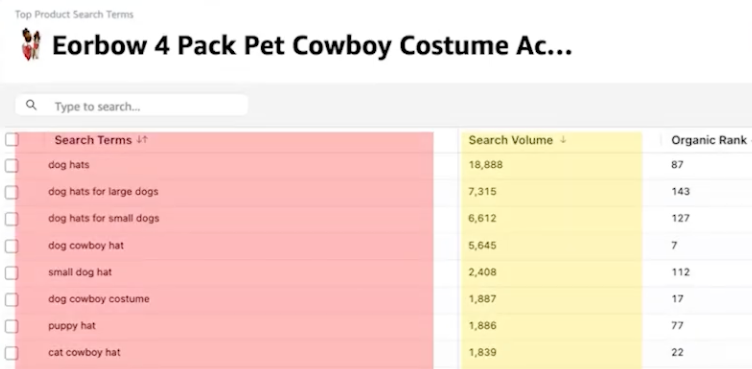
When you click the Top STs button on any product listing, you instantly see that product’s top search terms, complete with:
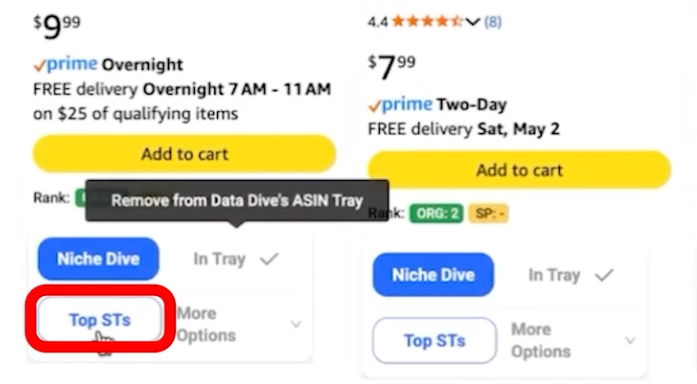
All of that data appears on the page with a single click, no setup required.
The Data Dive Chrome Extension turns every Amazon page into a research launchpad. Search for it in the Chrome Web Store, install it, log into your Data Dive account, and you’re ready to run.
Want to go deeper with Data Dive? These posts will help:
Your rank slipped last Tuesday. Was that something you did, or something a competitor did? Until now, Competitor Price Tracker could tell

Amazon caps product titles at 75 characters on July 27, 2026. Here’s the full change, why it matters, and the step-by-step fix using Data Dive.