Lauren Corrette walks through the full MCP setup in 2 minutes 39 seconds.
What is an MCP, and why should Amazon sellers care?
MCP stands for Model Context Protocol, an open standard connecting AI assistants directly with outside tools and their live data.
Instead of pasting information into chat, your AI can work with current business data from the tools you already use.
For Amazon sellers, that means ChatGPT or Claude can finally understand your catalog, keywords, rankings, and ongoing research.
Without that connection, AI understands Amazon broadly, but it cannot see what is actually happening inside your specific business.
With MCP, it can read your real Data Dive research and use that context when answering questions or suggesting actions.
That difference matters because larger sellers usually have plenty of data spread across dashboards, reports, exports, and different tools.
The bigger challenge is bringing that information together, understanding what changed, and deciding what action should happen next.
MCP helps reduce that gap by giving your AI access to the information needed for faster, better informed decisions.
What makes the Data Dive MCP different from other Amazon MCPs?
Data Dive is not the only Amazon tool with an MCP connector, since Helium 10 and Jungle Scout launched theirs earlier.
The main difference is what each connector can actually do once your AI assistant is connected to your account.
Most Amazon MCPs focus on retrieval, so you ask a question and the AI returns the information it can access.
Data Dive supports retrieval too, while also letting you start a Niche Dive or create Rank Radar tracking from chat.
Before anything runs, the assistant asks for confirmation, so you stay in control of every action inside your account.
The second difference is data depth, because Data Dive gives your AI access to complete research instead of brief summaries.
That includes full Niche Dives, keyword matrices, competitor listing attributes, and Rank Radar history across the research you already use.
Retrieval-only MCPs
Data Dive MCP
What it does
Answers questions about your data
Answers questions, and runs research for you
What the AI sees
Summarized metrics
Full Niche Dives, keyword matrices, competitor attributes
Can it act?
Not typically
Yes — starts Niche Dives, sets up Rank Radar, with confirmation
Setup
Varies
About a minute. No developer, no config file
What do you need before you start?
A Data Dive account on the Standard or Enterprise plan. MCP access is included with both subscription levels.
Claude, ChatGPT, or another supported AI assistant. The tool must support custom MCP connectors for external data access.
About one minute for setup. You do not need a developer, terminal, or configuration file to connect everything.
Open your Data Dive settings and select MCP to find the server URL and setup guides for supported assistants.
That same page also lets you review existing connections and manage which AI tools currently have access to Data Dive.
How do you connect Data Dive to Claude?
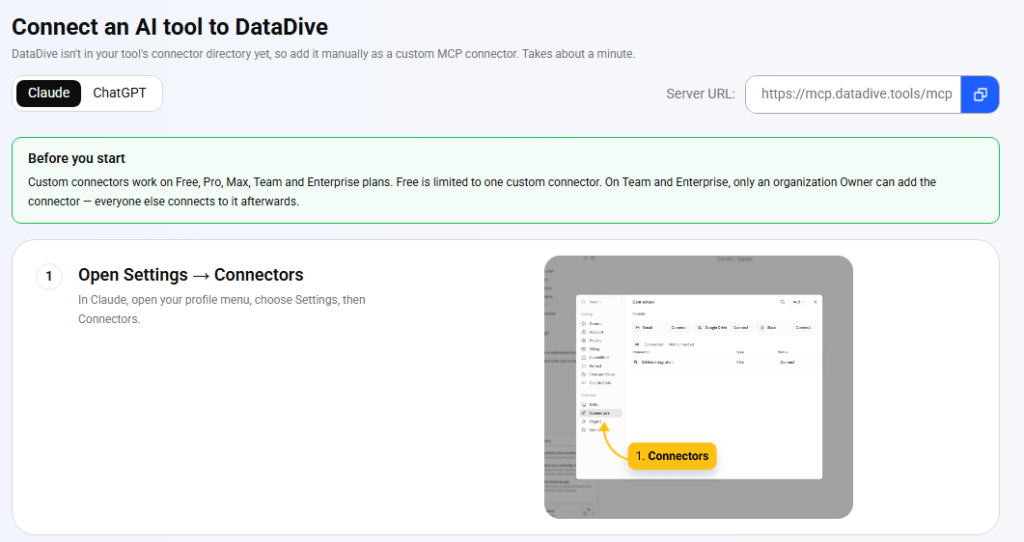
Step 1 — Open Settings → Connectors
In Claude, open your profile menu, choose Settings, then Connectors.
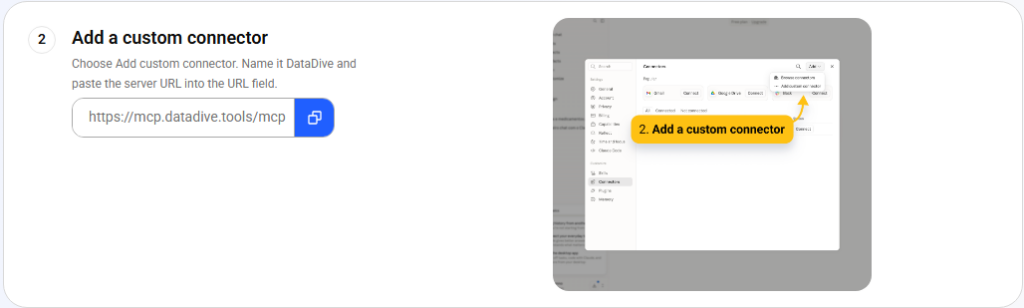
Step 2 — Add a custom connector
Choose Add custom connector. Name it Data Dive and paste the server URL into the URL field:
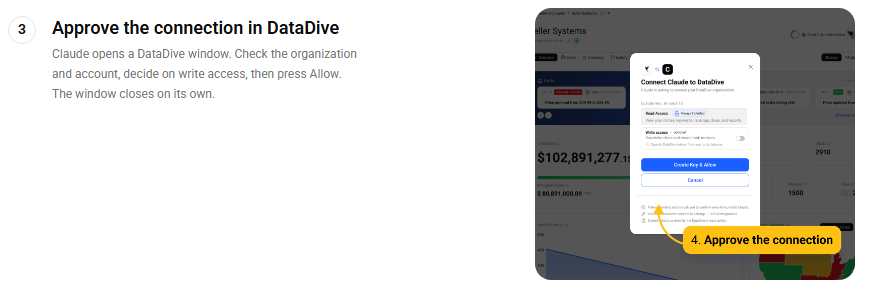
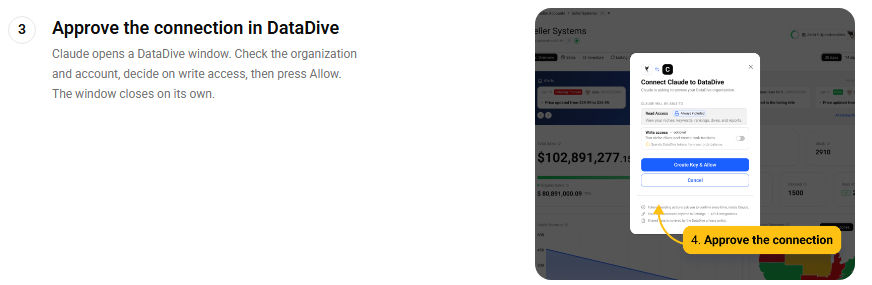
Step 3 — Approve the connection in Data Dive
Claude opens a Data Dive window where you confirm the correct organization and account before approving the connection.
You can also choose whether to grant write access, then select Allow to complete the authorization process.
Read access lets the AI view your niches, keywords, dives, reports, and other connected research inside Data Dive.
Write access is optional and allows the AI to create Niche Dives or set up Rank Radar tracking.
If you only want answers, leave write access disabled and add it later when you need additional actions.
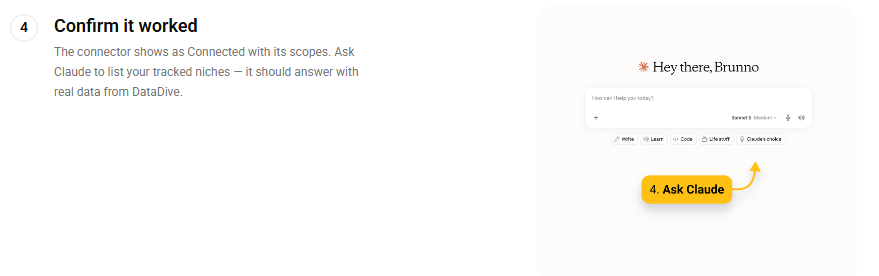
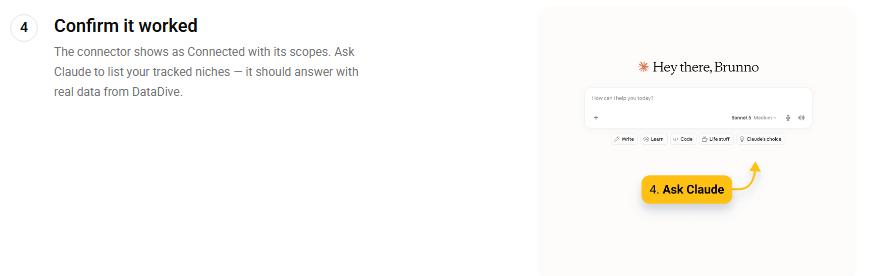
Step 4 — Confirm it worked
Back in Claude, the connector should now show as Connected with its scopes listed. Ask it something small to prove the pipe is open:
If it comes back with your actual niches, you’re done.
How do you connect Data Dive to ChatGPT?
ChatGPT works too, with more restrictions worth knowing about before you start:
Full MCP support in ChatGPT — including write tools — is in beta on Business, Enterprise and Edu plans.
Pro users can connect Data Dive in developer mode, but with read tools only.
Custom MCP apps are not available on mobile. This is a web-only setup.
Only admins and owners can turn on developer mode or publish an app for the workspace.
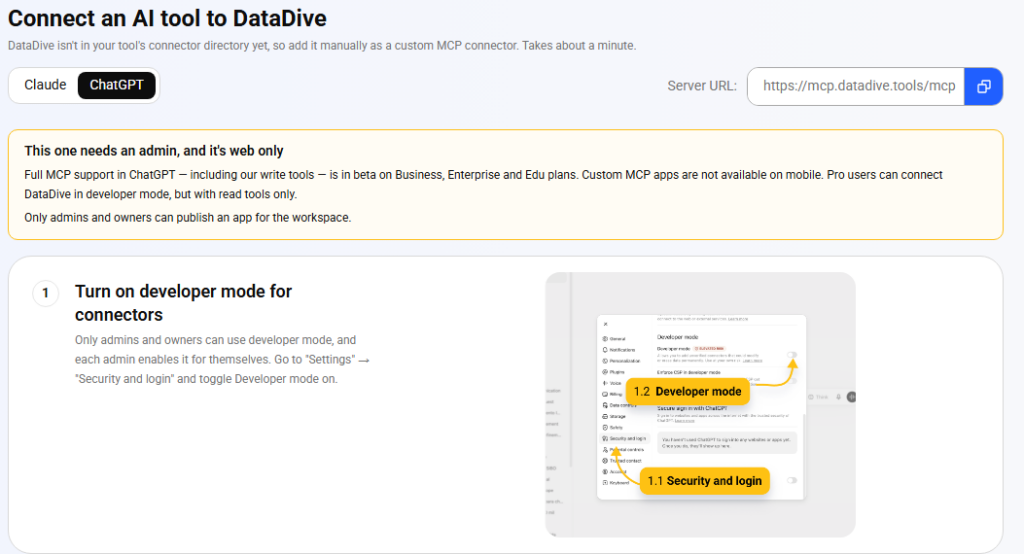
Step 1 — Turn on developer mode for connectors
Go to Settings → Security and login and toggle Developer mode on. Each admin enables this for themselves.
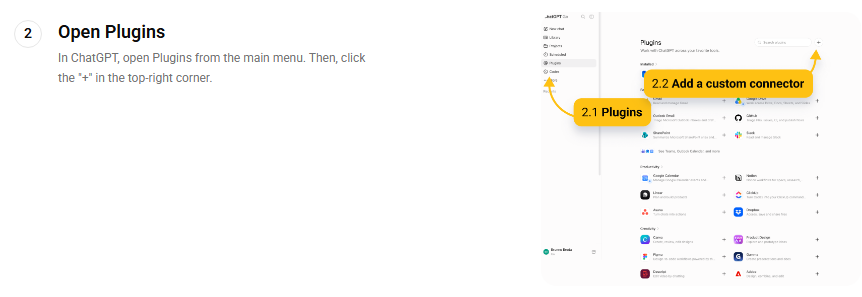
Step 2 — Open Plugins
From the main menu, open Plugins, then click the + in the top-right corner.
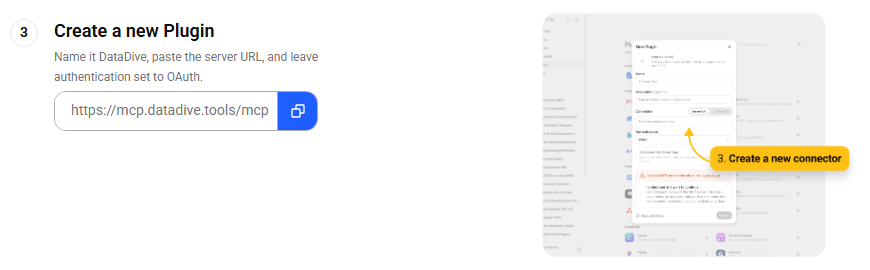
Step 3 — Create a new plugin
Name it Data Dive, paste the same server URL (https://mcp.datadive.tools/mcp), and leave authentication set to OAuth.
Step 4 — Approve the connection in Data Dive
A browser tab opens on the Data Dive consent screen. Confirm the organization and account, then press Allow.
Step 5 — Confirm it worked
Ask ChatGPT to list your tracked niches. Real data back means you’re connected.
What can you actually do once it’s connected?
Below are the workflows sellers get value from first. Each one is a prompt you can copy, paste, and adjust.
The Monday rank standup
The single best habit to build. Instead of opening four dashboards and squinting at line charts, you get a readable summary in ninety seconds.
How are my rankings trending across everything in Rank Radar? Flag anything
that dropped more than five positions in the last seven days, tell me which
of those matter based on the keyword's volume, and give me a one-paragraph
summary I can read to my team in ninety seconds.
The competitor movement digest
Most sellers find out a competitor moved on them several days after it starts costing money. This closes that window.
What changed in my tracked competitor set this week — pricing, ranking, new
entrants into the top 10? Tell me which single change is most likely to cost
me revenue this month, and what my options are.
The go/no-go gate
The highest-stakes moment in a seller’s month is the one right before money gets committed to a product. Ask the data to argue with you.
Pull my three most recent niche dives. For each one, score it against my
go/no-go criteria: top-10 revenue concentration, review-count moat on the
incumbents, price spread, and how many listings look genuinely optimized.
Rank them and tell me which single one you'd put money behind — and what
would have to be true for you to be wrong.
That last clause does most of the work. Asking an AI what would make it wrong is how you get an analysis instead of a cheerleader.
The weak-incumbent hunt
In my saved niches, find every listing in the top 10 that is ranking well
despite a weak listing — thin title keyword coverage, missing attributes
customers keep mentioning, or low image count. Those are the ones I can
out-execute. Show me the gap for each.
A phased launch keyword plan
Using the keyword data from my [niche name] dive, build me a three-phase
launch keyword plan. Phase 1: low-competition terms I can rank for in two
weeks. Phase 2: mid-volume terms to attack once I have review velocity.
Phase 3: the head terms. For each phase give me the terms, why they're in
that phase, and what has to be true before I move to the next one.
A listing brief built from live competitor data
Hand this output straight to your copywriter. It pairs well with the AI Product Brief workflow already inside Data Dive.
Pull the listing attributes the top competitors in my [niche name] dive are
all including, and the ones customers complain are missing. Write me a
listing brief for my copywriter: title structure, the five bullets, and the
three claims we should own that nobody in the top 10 is making.
PPC harvest candidates
Cross-reference my keyword research against where I actually rank
organically. Which terms am I ranking well for organically that deserve an
exact-match campaign, and which am I bidding on where I have no organic
relevance at all? Sort by likely wasted spend.
Kicking off the work, not just reporting on it
This is where Data Dive MCP goes beyond read-only access, letting you start research directly after confirming the action.
Start a new niche dive on these five ASINs, and when it's done, set up a
Rank Radar on the top 20 keywords by search volume. Then summarize what
you found in five bullets I can paste into our product Slack.
Chaining Data Dive with your other tools
Other MCP connections, like Google Sheets, Slack, or documentation tools, can work with Data Dive inside one prompt.
This combined workflow is still rarely discussed in the Amazon space, yet it can make each connection significantly more useful.
Pull my Rank Radar data for all tracked keywords, then write it into the
"Weekly Rank" tab of my tracking sheet with this week's date, and highlight
anything that moved more than five positions.
For agencies, the same pattern scales across client accounts:
Every Monday, summarize ranking and competitor movement for each of my
client niches, and post one message per client into their Slack channel.
Keep each under 150 words and lead with the thing they need to act on.
A Monday morning process that once took three hours can now run before your first scheduled call begins.
For proactive updates, webhook alerts can push changes automatically, while indexing alerts flag listing issues before they become obvious.
Who controls what the AI can do?
It confirms before acting, so nothing runs inside your account until you review and approve the requested action.
You stay in control while avoiding the manual clicking required to start each workflow yourself every time inside Data Dive.
Read and write permissions are separate, so you can grant research access without allowing the assistant to take actions.
You can add write access later whenever you are comfortable allowing the assistant to perform approved tasks inside Data Dive.
Each connection can be revoked individually from the MCP page in your Data Dive settings whenever access is no longer needed.
Removing one tool does not require rotating your API key or disrupting any other active connections already connected to your account.
What it doesn’t replace
The MCP is a useful layer, while your Data Dive dashboard remains the best place for deeper research and visual analysis.
Use MCP for quick questions, follow-up analysis, and tasks you would normally hand off between larger research sessions.
It also cannot improve weak inputs, because AI still depends on the quality and depth of your underlying research.
If you have not run Niche Dives or tracked important terms, there is less useful data for AI to interpret.
Build the research first, then use MCP to make that information easier to access, analyze, and act on.
The Bottom Line
Your Amazon data has always been something you search, while MCP turns it into something you can question directly.
It can answer, start approved work, and help you build a repeatable weekly habit around the insights it surfaces.
Setup takes about a minute through Settings → MCP inside Data Dive, where you can choose your preferred AI tool.
Brandon Young went backstage at Amazon Accelerate 2026 as an Amazon partner. Time to Prime, AI auto-optimization for PPC, and why new launches drove 16% of third-party seller revenue.
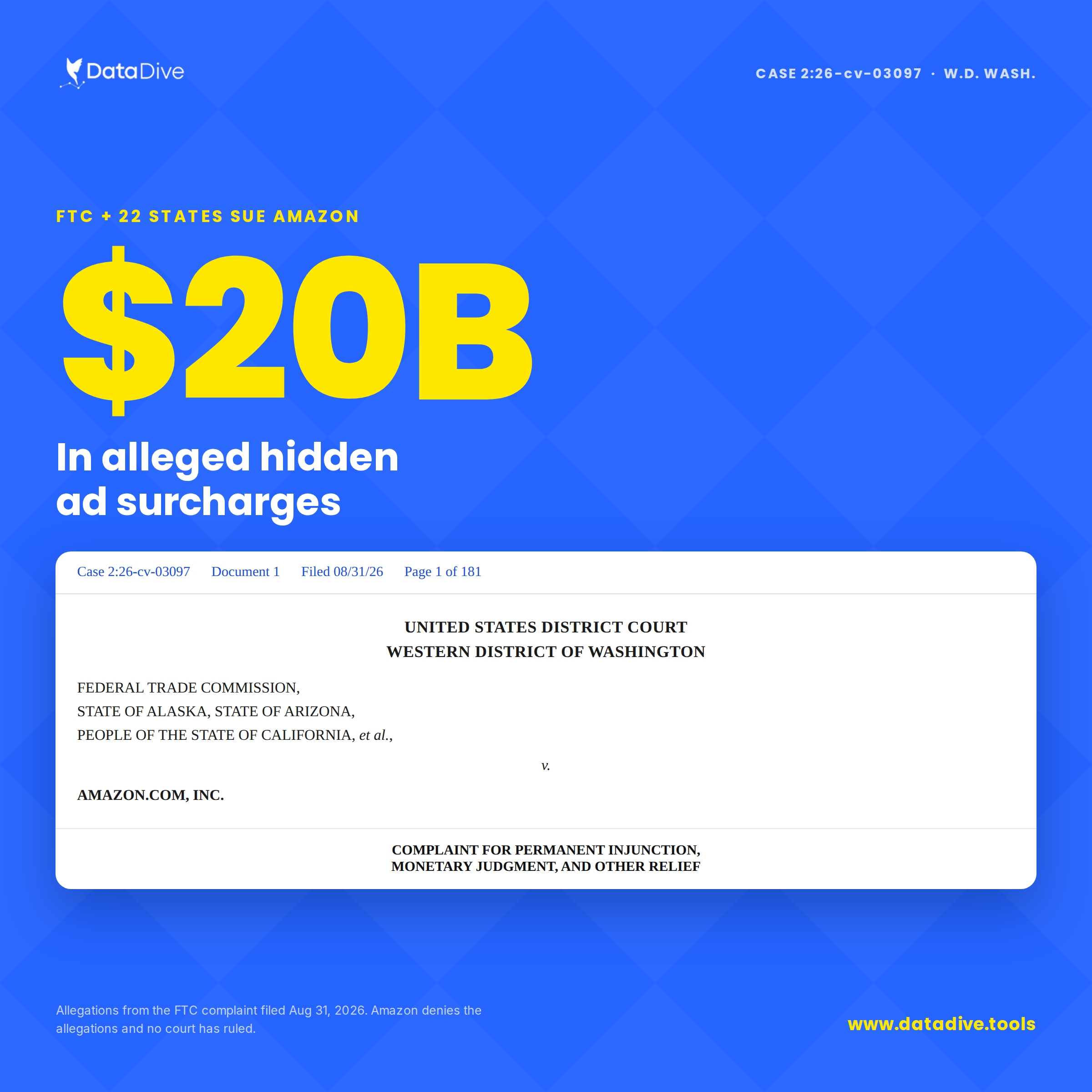
The FTC and 22 states allege Amazon hid surcharges in its advertising auctions for seven years. Amazon denies it. What the complaint says, and what Amazon sellers should do about it.